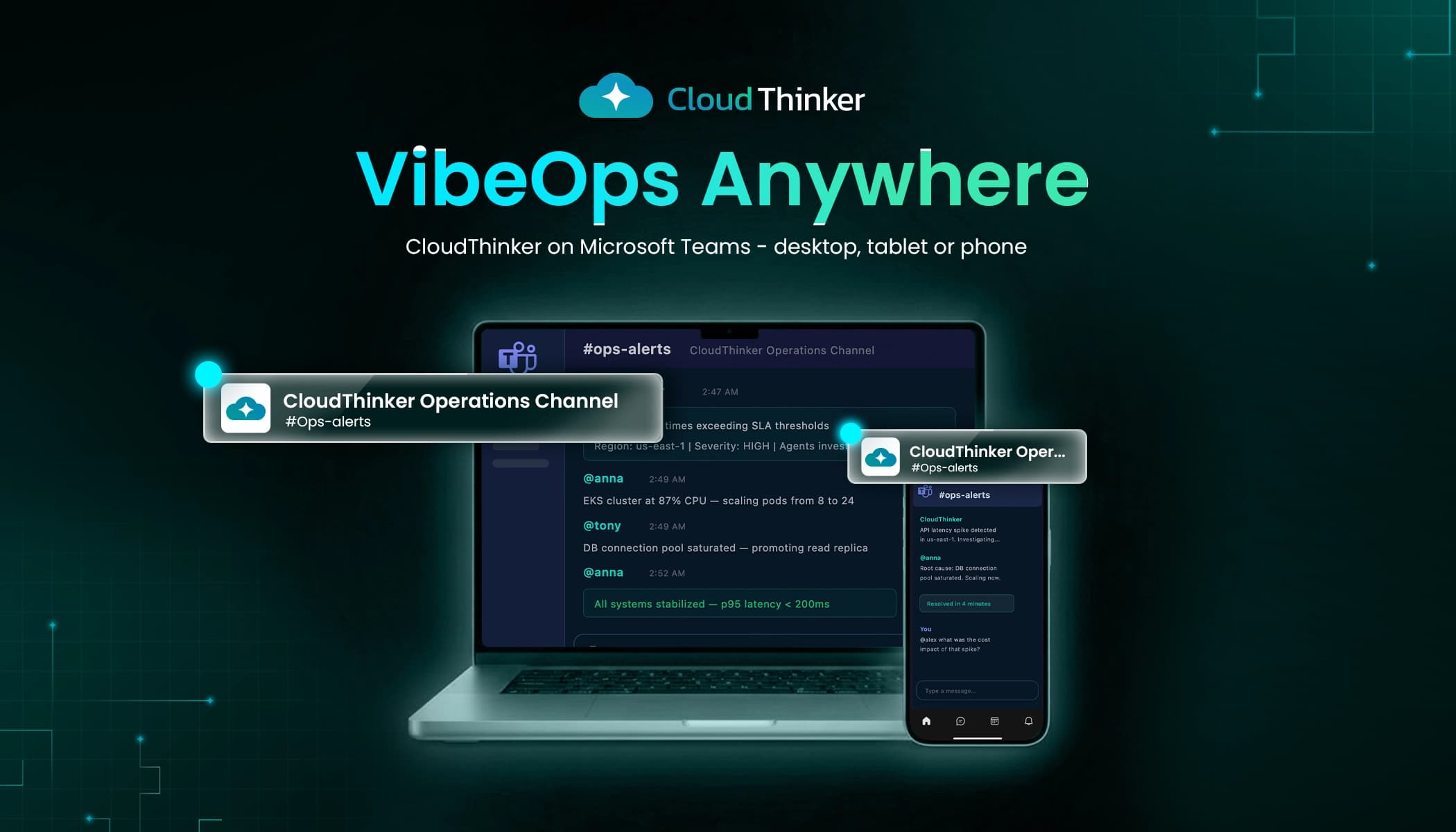
VibeOps Anywhere: CloudThinker Now on Microsoft Teams
Your cloud operations team, wherever you are: desktop, tablet, or phone.
2:47 AM. A high-severity alert fires in #incidents: API response times exceeding SLA thresholds in us-east-1.
By 2:49 AM, CloudThinker has found an EKS cluster at 87% CPU and traced the latency to a saturated database connection pool. The thread already holds the proposal: scale the pods from 8 to 24 and promote a read replica. The on-call engineer reads it on a phone notification and approves. By 2:52 AM, p95 latency is back under 200ms.
The whole incident played out inside one Microsoft Teams channel. No console switching. No war room.
That's VibeOps on the tool more than 320 million people use every month (Microsoft's last reported figure, from October 2023).
012:47 AM
Alert
API response times breach the SLA threshold in us-east-1.
022:48 AM
Investigate
Cluster CPU, pod counts, database connections and recent deploys.
032:49 AM
Propose
Scale pods 8 to 24, promote a read replica. Posted to the thread.
042:50 AM
Approve
The on-call approves from the Teams mobile app.
052:52 AM
Verify
p95 latency back under 200ms and holding.
Why the Teams channel usually isn't where the work happens
Most enterprise teams already live in Microsoft Teams: standups, incident threads, deployment updates, escalation channels. Yet the moment something breaks in production, everyone leaves Teams to open AWS consoles, dig through dashboards and juggle a dozen browser tabs. The channel ends up holding the alert and the "looking into it" message, while the actual investigation happens somewhere nobody else can see.
That isn't a Teams problem. It's the shape of the integrations most teams plug into it.
Incoming webhooks post what crossed a line, nothing more. A monitoring tool sends an Adaptive Card to a channel through a Teams workflow webhook. The payload is whatever the sender put in it, usually a title, a threshold and a link:
{
  "type": "message",
  "attachments": [
    {
      "contentType": "application/vnd.microsoft.card.adaptive",
      "content": {
        "$schema": "http://adaptivecards.io/schemas/adaptive-card.json",
        "type": "AdaptiveCard",
        "version": "1.4",
        "body": [
          {
            "type": "TextBlock",
            "weight": "Bolder",
            "text": "p95 latency > 800ms"
          },
          {
            "type": "TextBlock",
            "text": "service: checkout-api, region: us-east-1"
          }
        ]
      }
    }
  ]
}
That card can't know the cluster is at 87% CPU, that the connection pool is saturated, or that the same alert fired last Thursday. Every one of those facts is a separate login.
Classic ChatOps bots run the commands you scripted. A bot that answers deploy status or restart api is useful, and it's also a decision tree drawn before the incident. Real incidents don't follow the tree. Whether the next check is the database, the node pool or the last deploy depends on what the previous check found.
Mobile is read-only in practice. You can read the alert on a phone. You can't comfortably query CloudWatch, compare two Grafana panels and read a diff on one. So the first real response waits until someone gets to a laptop and a VPN.
01Webhook
A card, no context
An incoming webhook posts the threshold that broke. Everything else is a click away in another tool.
02ChatOps bot
Fixed commands
A bot runs the commands someone scripted in advance. It can’t decide what to check next.
03Mobile
Read, then wait
On a phone you can see the alert, but the investigation still needs a laptop and a VPN.
CloudThinker closes that gap. The same agents teams already use on Slack now work natively inside Microsoft Teams, with the investigation happening in the thread instead of beside it.
How it works
CloudThinker publishes a bot to your organization's Teams app catalog. Once it's installed, messages flow both ways: your team talks to CloudThinker with the @CloudThinker prefix, and CloudThinker pushes updates back to your channels.
01Your stack
Connections
 Cloud accountsInventory, metrics, cost
 ClustersPods, nodes, events
 ReposDeploys and code review
 ObservabilityAlerts, logs, traces
Read-only by default
02Investigation
 CloudThinker
- InvestigateEvidence before the page
- RouteNotifications per channel
- AnswerPlain-language questions
- ProposeChanges wait for approval
The same agents as on Slack
03Where the team works
 Microsoft Teams
- Channels#incidents, #cloud-ops, #security
- 1:1 chatQuiet questions to the bot
- MobileiOS and Android apps
- ApprovalsIn the same thread
Entra ID sign-in
The integration supports 1:1 conversations (DM @CloudThinker to quietly check a hunch) and channel-based operations, where the whole team sees what's happening in real time. All CloudThinker Language syntax works in Teams: add the @CloudThinker prefix and write the rest as you would anywhere else.
Proactive notifications
When something needs attention (an incident, a cost anomaly, a finished code review), CloudThinker sends it straight to the channel you configured.
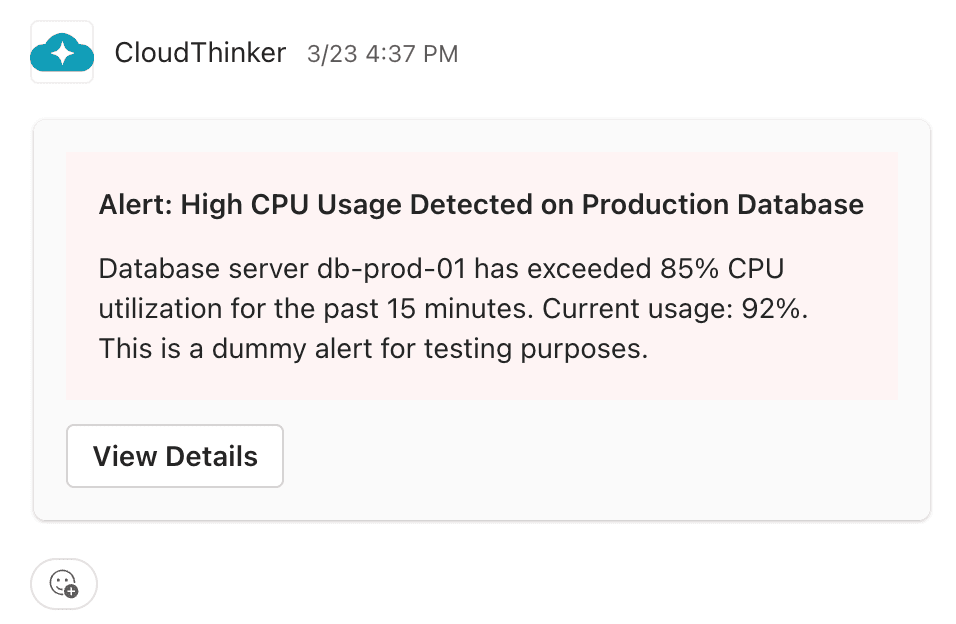
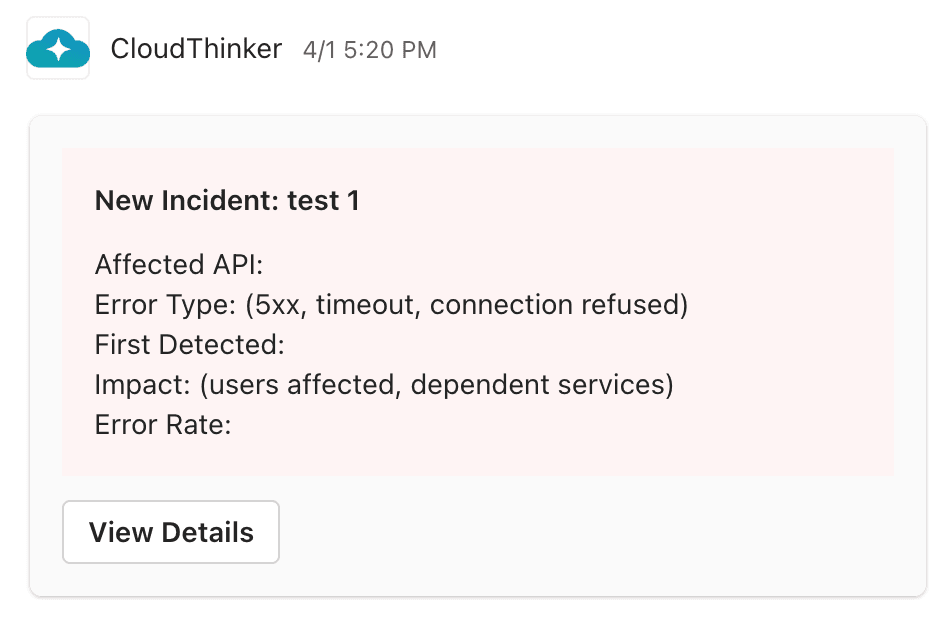
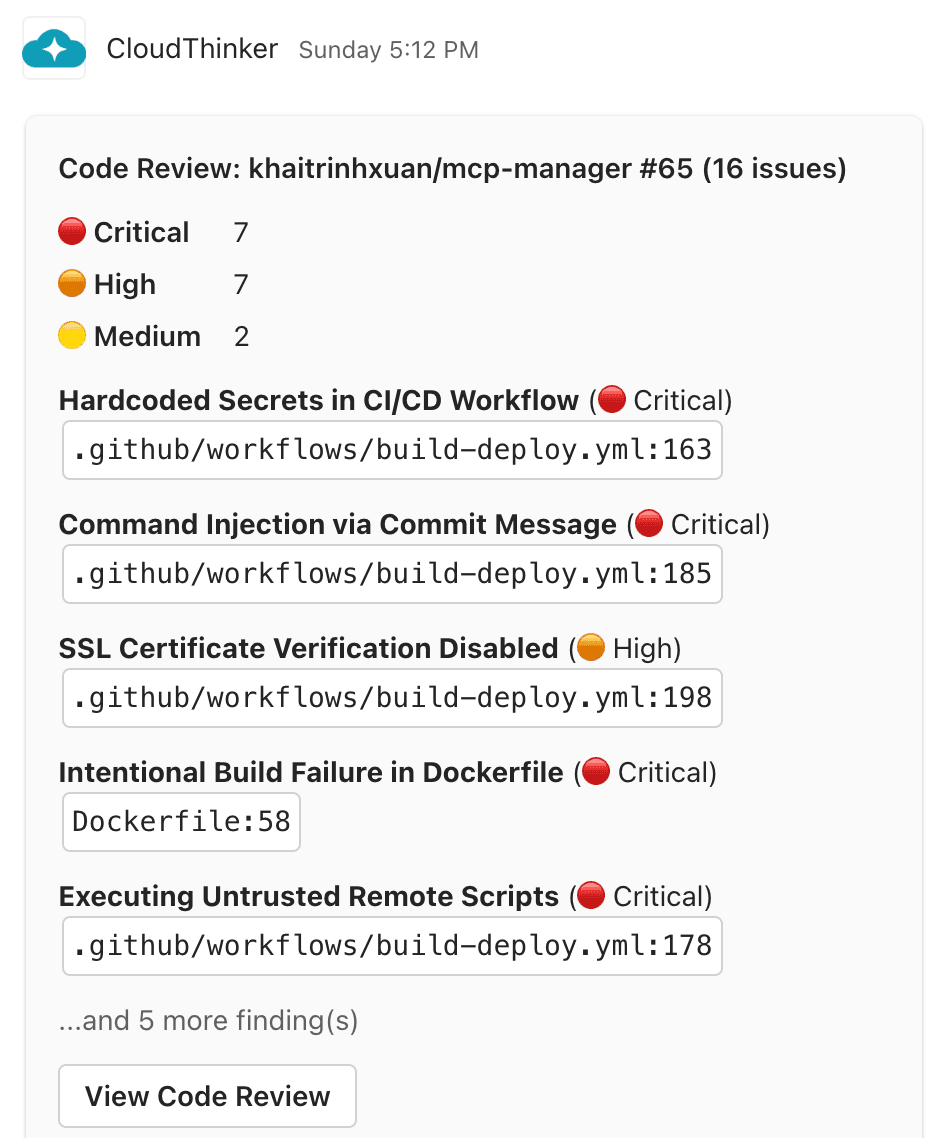
By the time you read the notification, the investigation is already underway. Every alert arrives with what changed, what's affected and the recommended next steps. You join an incident that's already being worked instead of starting from zero.
What gets pushed to your channels:
- Incident alerts with root cause analysis in progress and affected services mapped
- Cost alerts: daily spend thresholds, weekly summaries and anomaly highlights
- Code review notifications: a severity breakdown (critical, high, medium, low), file paths and a direct link to the review dashboard
- Security findings: compliance status and remediation priority
- Deployment status: rollout health, canary metrics and rollback recommendations
You can route alerts per channel: cost alerts to #cloud-ops, security findings to #security, incidents to #incidents, code reviews to #code-reviews. Set it up in Settings → Notifications.
One question, followed through
The other direction is where it gets useful. Prefix any message with @CloudThinker and ask in plain language:
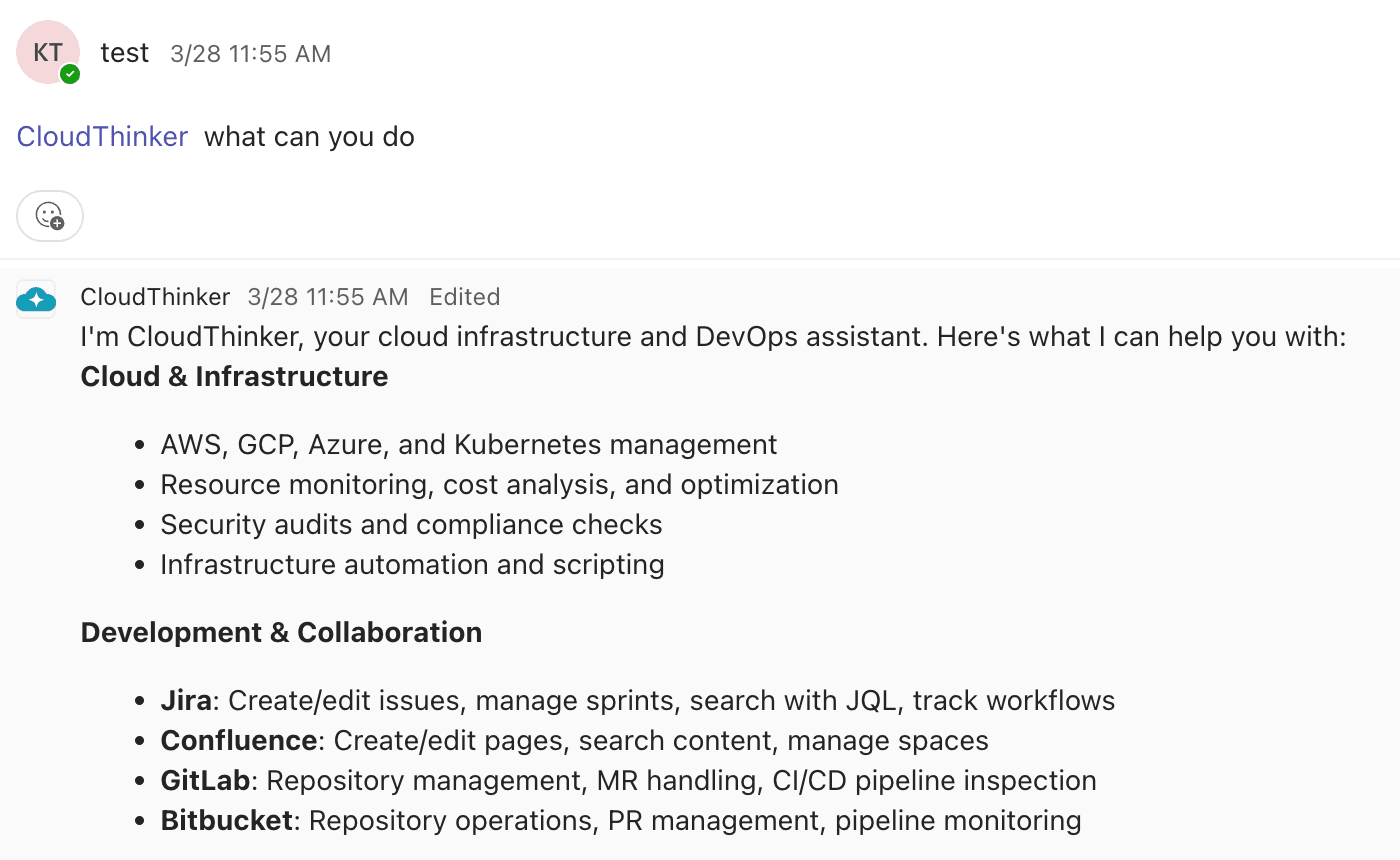
Here's what that looks like on the latency incident from the opening, starting from the message the on-call typed:
"@CloudThinker why is checkout latency up in us-east-1?"
There are a few readings, and each one predicts different evidence. Capacity: the cluster is running hot, so CPU is high across nodes and pods are throttled. A bad deploy: a release landed shortly before the alert, and errors started at the same minute. A slow dependency: the service is waiting on something downstream, so the database or cache shows the strain first.
CloudThinker checks each one rather than guessing. Node and pod metrics show the EKS cluster at 87% CPU, which supports capacity but doesn't explain why load rose. The deploy history for the last two hours is empty, which rules out a release. The database shows its connection pool pinned at the maximum, with queries queuing behind it. That's the cause: the pool saturated, requests piled up, and the extra in-flight work pushed the cluster's CPU up with it.
The reply in the thread says that in plain words, links the graphs it used, and proposes two changes: scale the deployment to absorb the backlog now, and promote a read replica so read traffic stops competing for the same pool. Each change waits for approval.
Follow-up questions stay in the same thread:
"@CloudThinker what did this incident cost us in extra compute?"
"@CloudThinker show me a dashboard of AWS cost trends by service for this month."
"@CloudThinker any critical security findings on the payments account?"
"@CloudThinker check pod status in the payment namespace."
"@CloudThinker write a weekly security summary report."
For broader questions, CloudThinker pulls the right specialists in on its own: ask it to analyze database infrastructure costs and the answer covers both the spend and the query patterns behind it.
It also learns your infrastructure's patterns and your team's conventions over time. For example, an alert type that took 10 minutes to triage last month can be resolved in 4 this month, because the earlier fix is already attached when it fires again.
From your phone
Teams runs on iOS, Android, desktop and web. CloudThinker does too.
The 2:47 AM incident? Handled entirely from a phone. Alert notification, investigation, approval, and a follow-up question about cost impact, all from the Teams mobile app. Need to escalate? Tag a teammate in the same thread. When they wake up, the full context is right there.
No laptop. No VPN. No "let me get to my desk first."
Why this beats the traditional setup
| Webhook alerts | Scripted ChatOps bot | CloudThinker in Teams | |
|---|---|---|---|
| What lands in the channel | A card with a threshold | Command output on request | A finding with evidence and a proposed fix |
| Next step in an incident | Leave Teams, open the consoles | Run the commands you remember | Already investigated in the thread |
| Questions | Not supported | Only the commands it knows | Plain language, with follow-ups |
| On a phone | Read the alert | Awkward command syntax | Read, ask, approve |
| Changes to production | None | Whatever the script does | Proposed, then approved by a named person |
| Record of what happened | Scattered across tools | Partial | The whole thread, with an audit trail |
The deeper difference is where the reasoning lives. A webhook and a bot both move data you already decided you needed. CloudThinker decides what to look at next based on what it just found, and writes that reasoning down in the channel, where the rest of the team can check it.
Gated by design
Working in chat makes it easy to act fast, so the guardrails matter more, not less. CloudThinker reads freely (metrics, logs, inventory, cost data) and proposes. Writes, from scaling a deployment to promoting a replica, go through Auto Mode, so you decide what runs on its own and what waits for approval in the Teams thread.
Enterprise-ready
Microsoft Teams is the collaboration backbone of the Fortune 500. CloudThinker's integration is built for that:
- Azure AD / Entra ID: SSO and tenant isolation through your existing identity provider
- Admin-controlled setup: the initial connection needs a Global Administrator or Teams Administrator; once the bot is published, any user can work with it
- Channel-level permissions: route specific notification types to specific channels
- Workspace-scoped access: users only reach the agents and cloud connections their CloudThinker account permits
- Audit trail: every action is logged and visible in the thread
- Data residency: infrastructure data stays within your configured boundaries
Getting started
Setup takes under five minutes. An Azure AD Global Administrator or Teams Administrator has to do the initial connection, once.
- Go to Admin Settings → Integrations and find Microsoft Teams
- Click Connect with Teams and complete the Microsoft OAuth flow
- Install the CloudThinker bot in your target Teams
- Map your Teams to CloudThinker workspaces so CloudThinker knows which cloud accounts to work on
- Choose which channels receive notifications: cost alerts, security findings, incidents, code reviews
- Test it in any mapped channel:
"@CloudThinker show our AWS costs for this week."
Then try a first investigation that changes nothing:
"@CloudThinker look at the alerts from the last 24 hours in production. Group them by likely cause and show the evidence for each. Propose only, change nothing."
For the full walkthrough, including permissions, troubleshooting and channel patterns, see the Teams integration guide.
Related reading
Start your free trial or book a demo to bring VibeOps to your Microsoft Teams workspace.