Mastering Workspace Skills: The Key to a Truly Autonomous AI Operator
I've spent years watching teams try to "automate" their workflows by copying and pasting the same prompts into AI tools. Every Monday: re-explain the code review standards. Every incident: re-describe the runbook. Every report: re-specify the format.
It's the automation equivalent of writing the same email template from scratch every time you send it.
The real breakthrough isn't a smarter AI. It's an AI that remembers how your team works — and acts on it without being asked.
That's what Workspace Skills are. And once you understand them, you'll never go back to prompt-pasting again.
What Is a Skill?
A Skill is an instruction manual you hand to the AI once. From that point on, every time a relevant request comes in — whether it's a code review, an incident report, or a weekly status update — the AI reads the right Skill, follows the procedure, and delivers output in exactly the format you defined.
No configuration. No prompt templates. No "let me explain how we do things here" for the hundredth time.
CloudThinker's Skills Hub now offers 1000+ pre-built, composable skills organized into three categories:
Public Skills — Built-in toolkits that handle universal tasks: PDF processing, DOCX generation, XLSX analysis, PPTX building. Zero setup. Always on.
Connection Skills — Purpose-built integrations for your stack: AWS, GitHub, GitLab, Jira, Slack, Datadog, and dozens more. Link a tool via Connections, and the corresponding Skills unlock automatically.
Custom Workspace Skills — This is where it gets powerful. Skills you build yourself — encoding your team's incident runbooks, code review standards, reporting formats, or any repeatable workflow into the AI's operating logic.
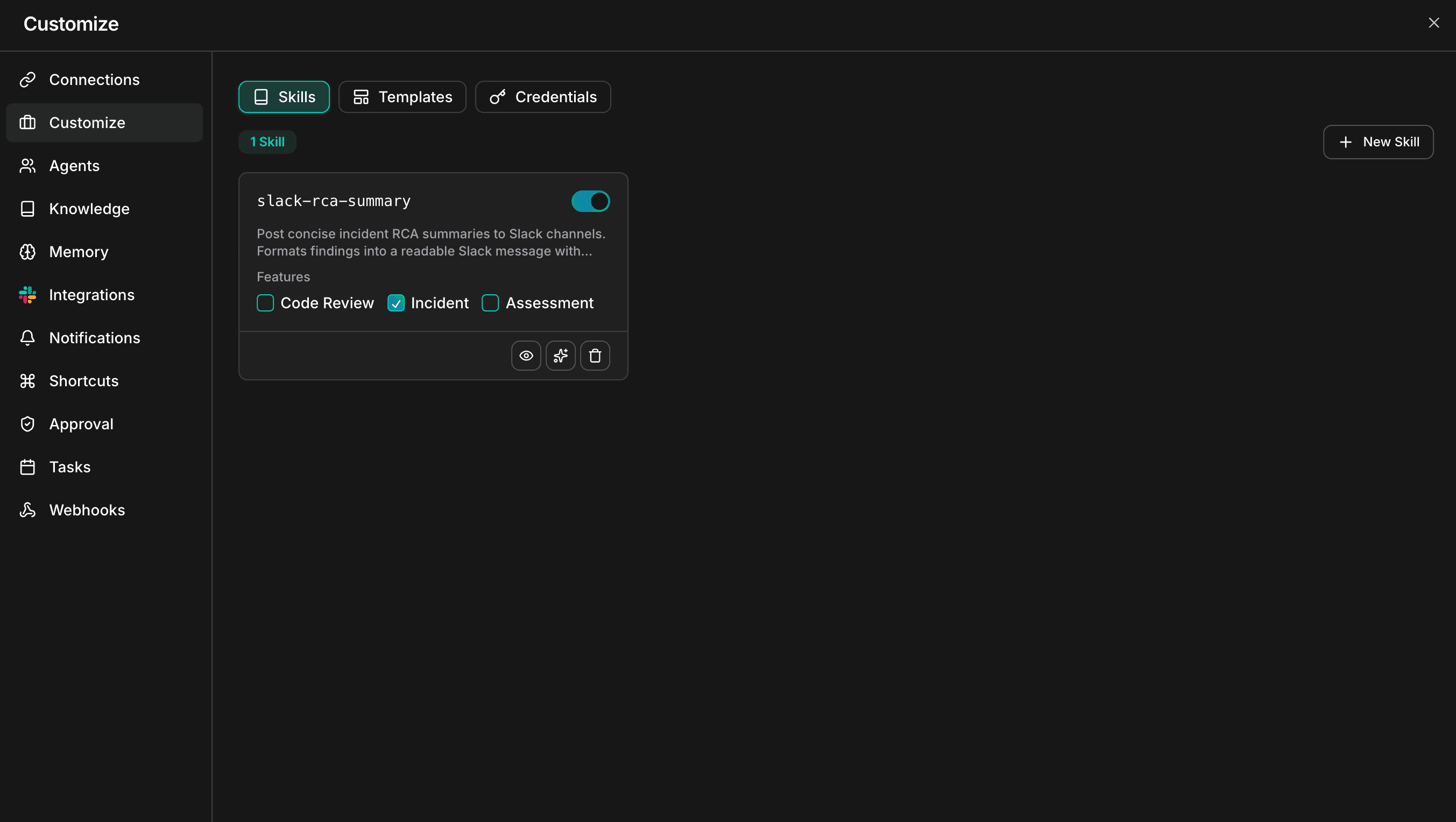
Skills overview showing Custom Workspace Skills with skill management interface
Most teams start with Public Skills, integrate their tools via Connection Skills, then progressively build Custom Skills as they identify the workflows worth automating. The Skills Hub gives you a library of 1000+ starting points across every domain — from Kubernetes operations to database management to security compliance.
Why This Matters More Than You Think
I've worked with engineering teams at every scale. The pattern is always the same: the first 3 months with a new tool are productive. Then entropy sets in. People forget the conventions. New hires don't know the unwritten rules. The "standard process" becomes whatever the person on-call remembers at 2 AM.
Skills solve this by making institutional knowledge executable. Not documented in a wiki nobody reads. Not explained in an onboarding call nobody remembers. Encoded into the AI that everyone uses every day.
A new developer joins your team. She types: "Review my PR before I push to main." Within seconds, the AI checks against your team's branching rules, your variable naming conventions, flags missing unit tests based on your coverage threshold, and formats the output exactly the way your team expects it.
She didn't configure anything. She didn't even know a Skill was running behind the scenes.
That's the difference between an AI assistant and an AI operator.
How the AI Decides Which Skill to Use
Here's something most users don't realize: you never tell the AI which Skill to run.
Every time you send a message, CloudThinker runs a silent matching process:
- It reads your message and recognizes intent
- It scans the Descriptions of all enabled Skills — Public, Connection, and Custom
- If a match is found, it pulls that Skill's full instructions into its working context
- It executes the workflow — with no further input from you
Just chat naturally — "Review my login component" — and the frontend-code-review Skill kicks in on its own. "What happened with the production alert last night?" — and the incident-analysis Skill activates.
This is the key difference between CloudThinker's Skill system and a traditional prompt library: Skills are proactively applied, not manually invoked. The AI acts as the routing layer. Your team just works.
Creating Your Own Custom Skill
CloudThinker gives you two paths. Both produce the same result — a SKILL.md file that the AI reads and follows. The Skills Framework documentation covers the full specification.
Method A: Build with AI (Recommended)
Describe what you want. The AI writes the Skill for you.
- Go to Customize → Skills and click New Skill
- Select Create with AI
- Describe your workflow in plain language
- The AI drafts a complete Skill and saves it to your workspace automatically
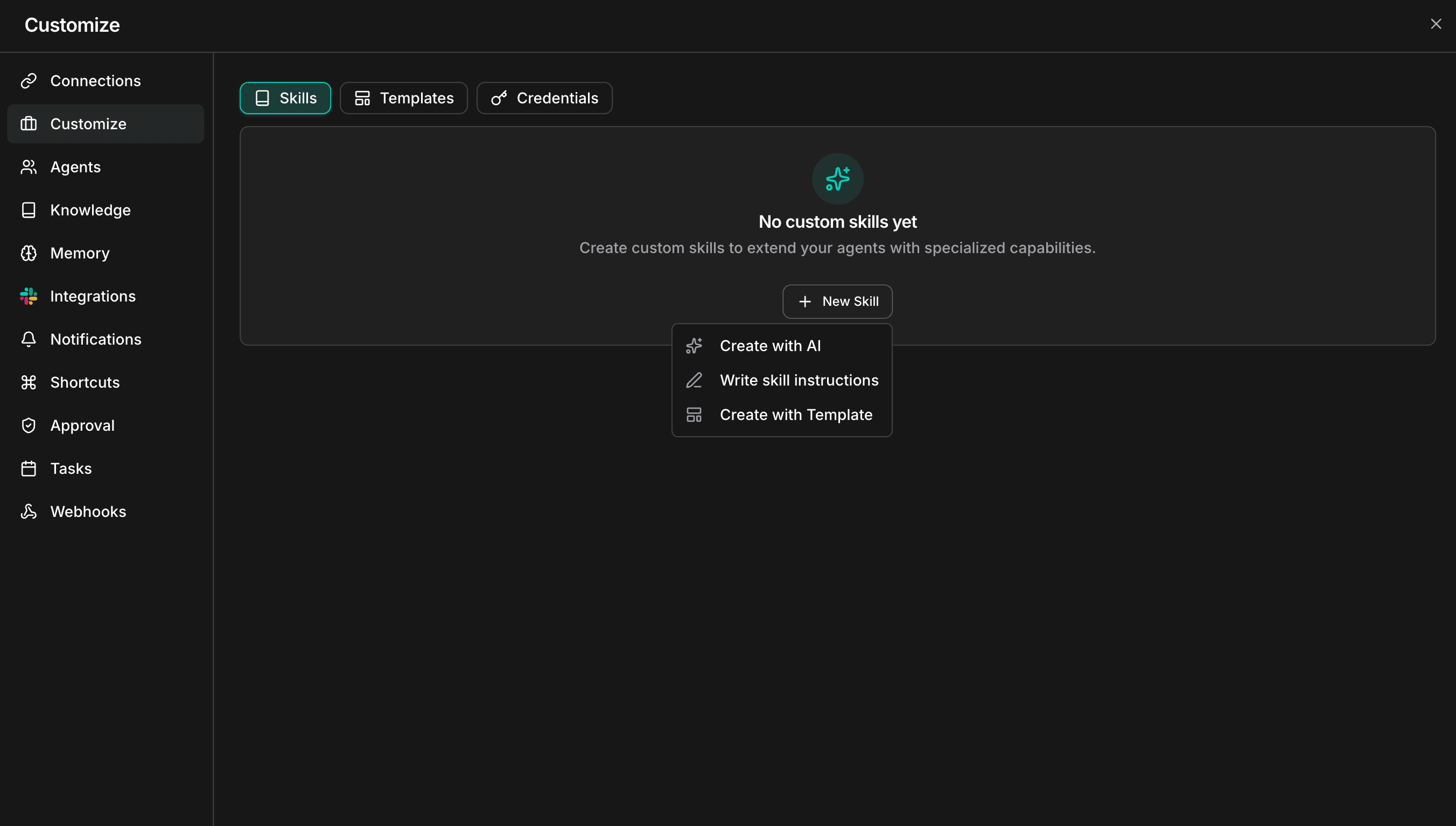
New Skill dropdown showing Create with AI, Write skill instructions, and Create with Template options
Example prompt: "Create a skill called weekly-status-report. Whenever I ask for a weekly report, read my recent commits from the last 7 days, format them into a markdown table grouped by project, and add a 2-sentence executive summary at the top."
This is the fastest path from idea to working Skill. I've seen teams convert entire runbooks into Skills in under an hour using this method.
Method B: Write It Manually
If you want precise control over every instruction — trigger conditions, guardrails, output schema — write it yourself.
- Go to Customize → Skills and click New Skill
- Select Write skill instructions
- Fill in the Skill name (lowercase, hyphen-separated — e.g.,
frontend-code-review) - Write the Description — this is the trigger logic. The AI reads this to decide when to activate
- Write the Instructions — step-by-step logic the AI follows when activated
- Click Create
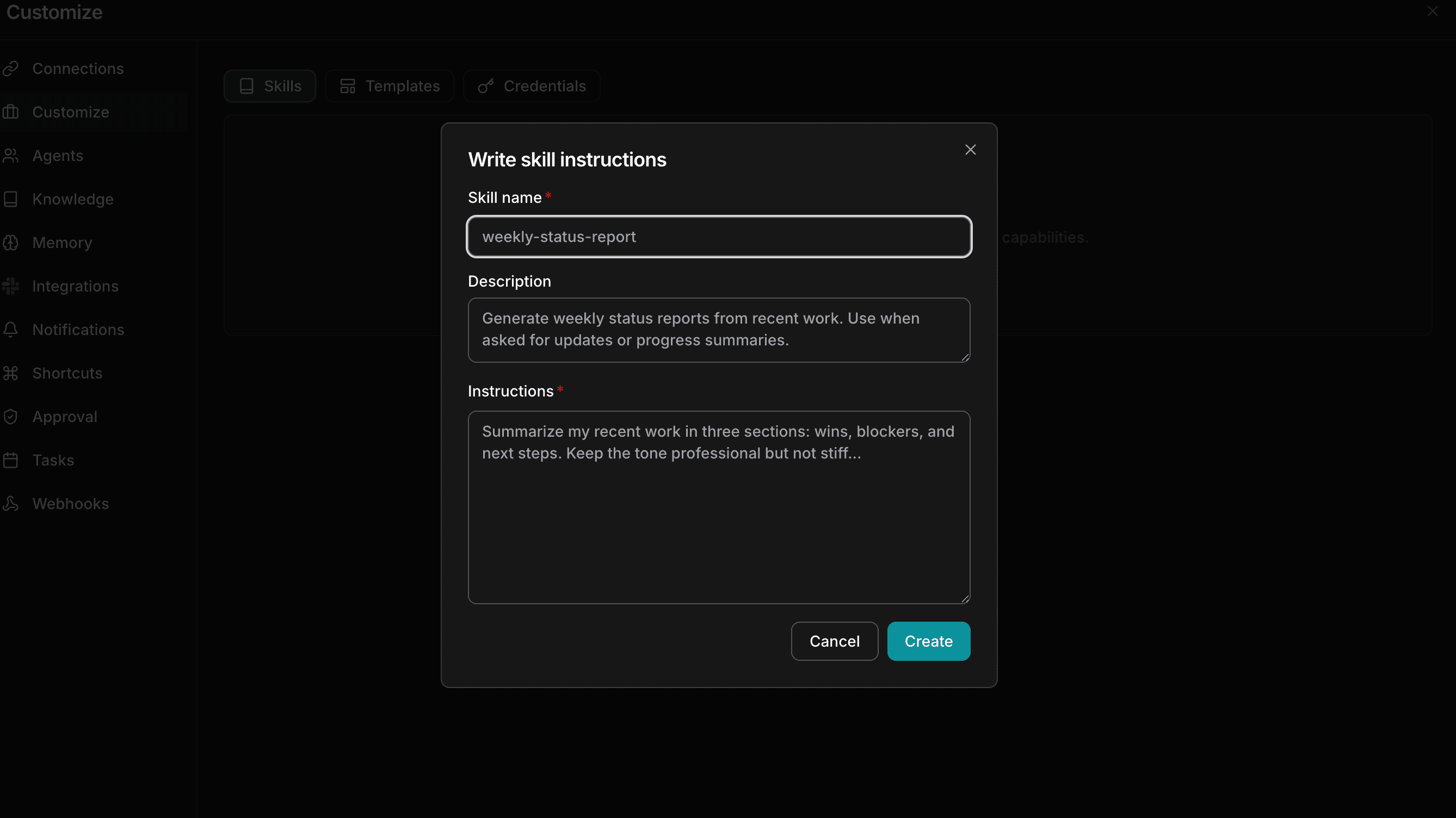
Write skill instructions modal with Skill name, Description, and Instructions fields
The Description field deserves special attention. It's your trigger condition — the "IF" statement that determines when this Skill fires.
Three Rules for Skills That Actually Work
After working with teams across engineering, DevOps, security, and finance, here's what separates Skills that get used from ones that gather dust:
1. Make the Description specific, not generic.
The Description is your activation logic. Vague descriptions misfire or don't trigger at all.
- Weak: "Use this for code reviews."
- Strong: "Trigger when the user asks to review React or TypeScript code, requests a PR checklist, or mentions checking component performance."
2. Break instructions into numbered steps.
The AI follows sequential logic well. Prose creates ambiguity. Steps create predictability.
- Check for missing error handling
- Verify variable naming follows camelCase convention
- Flag any functions longer than 30 lines
- Output findings as a GitHub-ready markdown checklist
3. Define the output format explicitly.
Don't leave it open-ended. Specify exactly what you want: a Markdown table, a Confluence template, a Slack message, a JSON object. The more precise your output spec, the more consistently the AI delivers something your team can use without editing.
Start with the Hub, Then Make It Yours
The fastest way to get started isn't building from scratch. It's browsing the Skills Hub.
With 1000+ pre-built skills spanning every domain — Kubernetes, databases, CI/CD, security, observability, cost optimization, and more — there's likely a Skill that already does 80% of what you need. Fork it, customize the instructions for your environment, and deploy.
Three steps to your first Custom Skill:
- Browse — Explore the Skills Hub for skills in your domain
- Customize — Adapt the instructions to your team's standards and tools
- Deploy — Go to Customize → Skills in your workspace and create it
Within a week, your team will wonder how they worked without it.
Learn more: Skills Hub · Skills Framework · Connections Guide